


Streaming Plugins for Enigma 2 Collection
I decided to search for all streaming/VOD plugins for Enigma 2 satellite receivers. There are quite a few so you will have to try them all and stick with the best one.
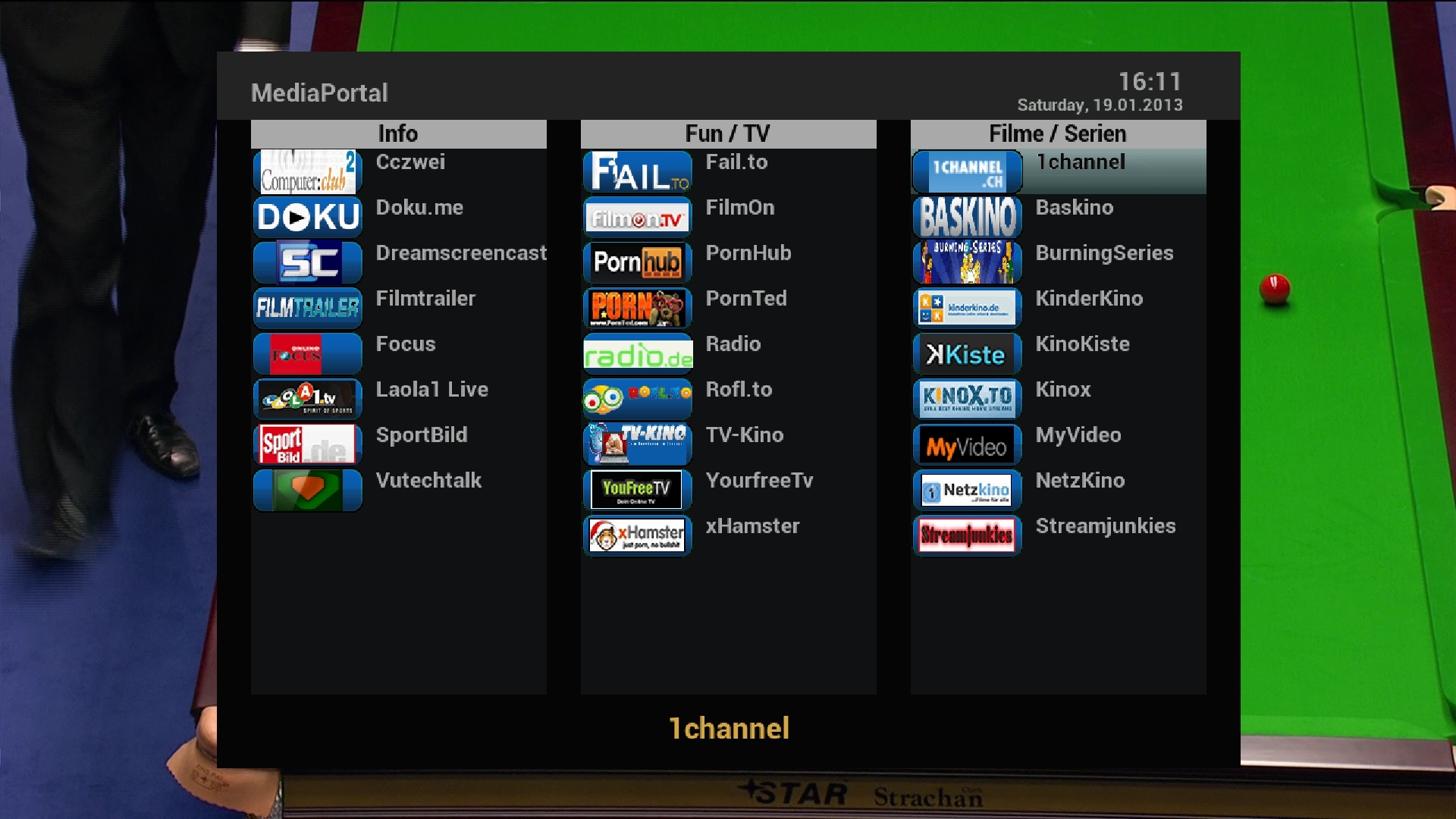
1. MEDIAPORTAL
I couldn’t find original thread but it seems that this thread (sorry no link, please google for yourself) contains always up-to date version of this plugin. OpenPLi does have problems with it and I am not sure how to solve it as I haven’t tested it yet.
2. HBBTV
HbbTV is dependent on TV station support. Most of the TV stations do not support this VOD service. Sadly not all receivers support HbbTV either. Dreambox for example supports this service but only in DMM original images. OpenPLi does not have HbbTV support for Dreambox. Xtrend and Vu+ also support HbbTV but as far as I know, HbbTV on OpenPLi isnt 100% stable (Vu+). Xtrend works fine with HbbTV. I havent tested this plugin yet as I read on forums that it doesn’t work well with Vu+ DUO.
3. ET-PORTAL
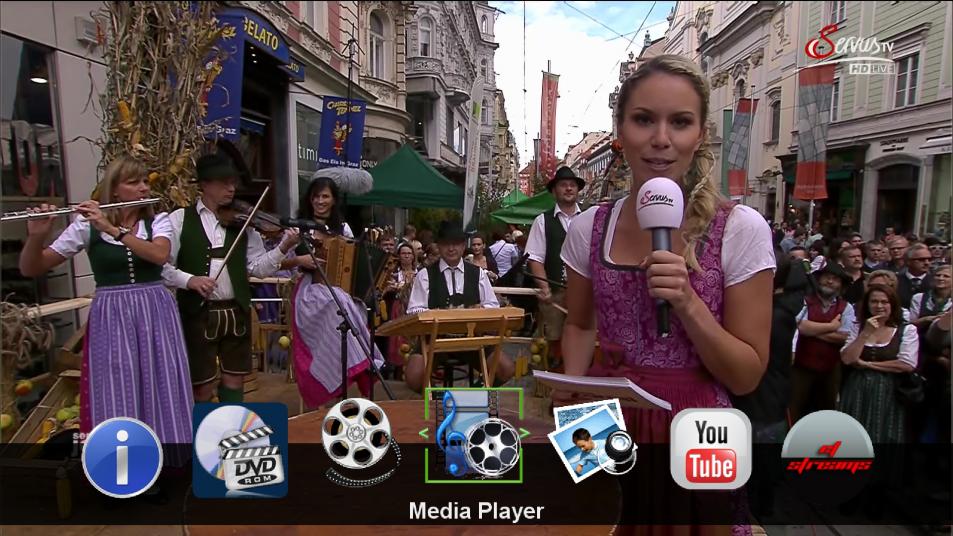
This plugin works on OpenPLi based images and is quite interesting. It supports all kind of streaming services. For more information and download visit this thread.
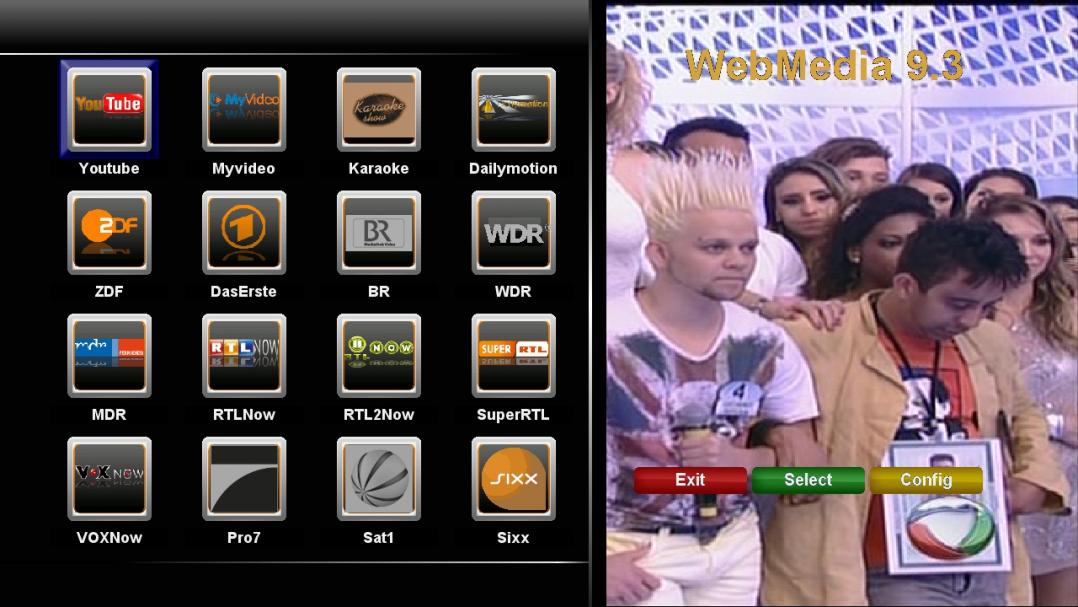
4. WEBMEDIA
Here is another streaming plugin mainly intended for German speaking users. Like other similar plugins it supports “tons” of different streaming services. For more information and download, please visit this thread.
5. TVONLINETV
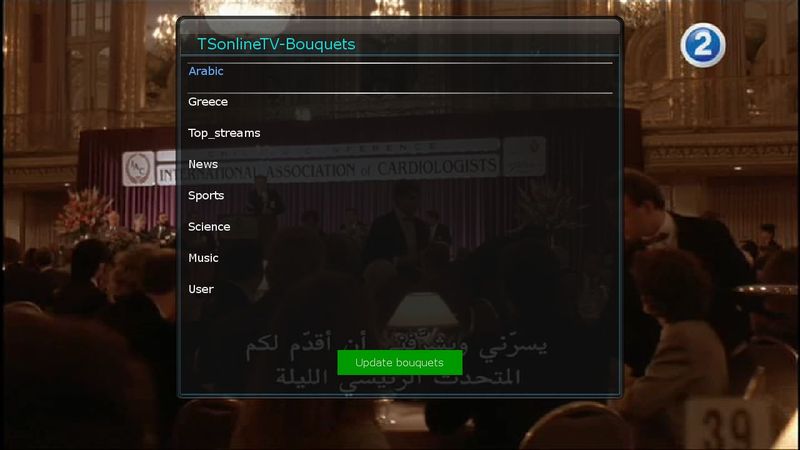
This plugin enables you to watch different TV channels from around the world. It works on all kind of images and latest version is always available here: http://www.dreamoem.com/showthread.php?5094-TSonlineTV-enigma2-plugin
For discussion please visit this thread:
https://www.satnigmo.com/forum/index.php?threads/enigma-2-streaming-plugins-selection.563/
How to Configure EMP Centauri Diseqc Switches
I decided to write a short tutorial about configuring popular EMP Centauri DISEqC switches. Nowadays you can buy hybrid EMP Centauri 9/1 which has integrated DIP switch where you can select four operational modes. You can choose between mode Diseqc 1.0, 1.0+1.1, 1.1 and 1.2. Diseqc 1.0 is not really suitable for 9/1 switch as you can only use 4 inputs (A/B/C/D) but some people decide to start with 4 LNBs and later expand to 8 or even more LNBs – you can buy 16/1 EMP switch which also works exceptionally well.
DISEqC mode = 1.0
Configuration for 1.0 mode is very simple, you just need to select correct satellite for every input (A-D).
DISEqC mode = 1.0+1.1
Settings for 1.1+1.0 mode are a bit challenging and here are 100% correct ones (I will only write most important options):
Committed DISEqC command = AA,AB,BA,BB
Uncommitted DISEqC command = 1 or 2
Command order = committed,uncommitted,toneburst
This should be it, all other options can be left alone, except LNB value should me changed but this is logical of course. Here are examples for every LNB value:
LNB 1 – Diseqc Committed AA – Uncommitted input 1
LNB 2 – Diseqc Committed AB – Uncommitted input 1
LNB 3 – Diseqc Committed BA – Uncommitted input 1
LNB 4 – Diseqc Committed BB – Uncommitted input 1
LNB 5 – Diseqc Committed AA – Uncommitted input 2
LNB 6 – Diseqc Committed AB – Uncommitted input 2
LNB 7 – Diseqc Committed BA – Uncommitted input 2
LNB 8 – Diseqc Committed BB – Uncommitted input 2
DISEqC = 1.1
This one is very easy to setup. Here are the required changes for mode 1.1:
Committed DISEqC command = none (in all situations)
Uncommitted DISEqC command = 1,2,3,4,5,6,7,8
Command order = uncommitted,committed,toneburst
And here are examples for every LNB:
LNB 1 – Diseqc Committed “none” – Uncommitted input 1
LNB 2 – Diseqc Committed “none” – Uncommitted input 2
LNB 3 – Diseqc Committed “none” – Uncommitted input 3
LNB 4 – Diseqc Committed “none” – Uncommitted input 4
LNB 5 – Diseqc Committed “none” – Uncommitted input 5
LNB 6 – Diseqc Committed “none” – Uncommitted input 6
LNB 7 – Diseqc Committed “none” – Uncommitted input 7
LNB 8 – Diseqc Committed “none” – Uncommitted input 8
Conclusion
There is also mode 1.2 which behaves similar as a motor. This mode is rarely used and therefore I will skip it. I hope that this tutorial will help you setup EMP Centauri switch. Settings are the same on all Enigma 2 receivers but DISEqC implementation isn’t so you may encounter problems with some satellite receivers. Dreambox, Xtrend, Clarke-Tech, VU+ and Gigablue for sure do not have problems with EMP.
For discussion please visit this thread:
https://www.satnigmo.com/forum/index.php?threads/setup-emp-centauri-disecq-switches.562/
Top Channel Lists (Bouquets) for Enigma 2
9. Henksat (Dutch) – his latest lists are available via OpenPLi feed!
10. Cyrus (General)
These channel lists are the ones you need to check (order is random!). There are maybe even more channel lists but I decided to put only the most known ones and those that are still regularly updated. Regular updates are very important for satellite channel lists as they can become quickly obsolete. All links will lead you straight to original authors topic on forum or to original authors website (Vhannibal). In some cases you can expect that you will have to register in order to be able to download files from forum.
If you think that I forgot to add something, please leave a comment, I will try to edit my article as soon as possible.
RECOMMENDATION
My favorite channel list is the one from Team Red. They are listening to the users and are constantly updating it. Impressive!
For discussion please visit this thread:
https://www.satnigmo.com/forum/index.php?threads/top-channel-lists-for-enigma-2.561/
Top Windows Tools for Enigma 2 Receivers
This is my list of must have tools for Windows if you own satellite receiver with Enigma 2 software.
1# Dreambox Control Center
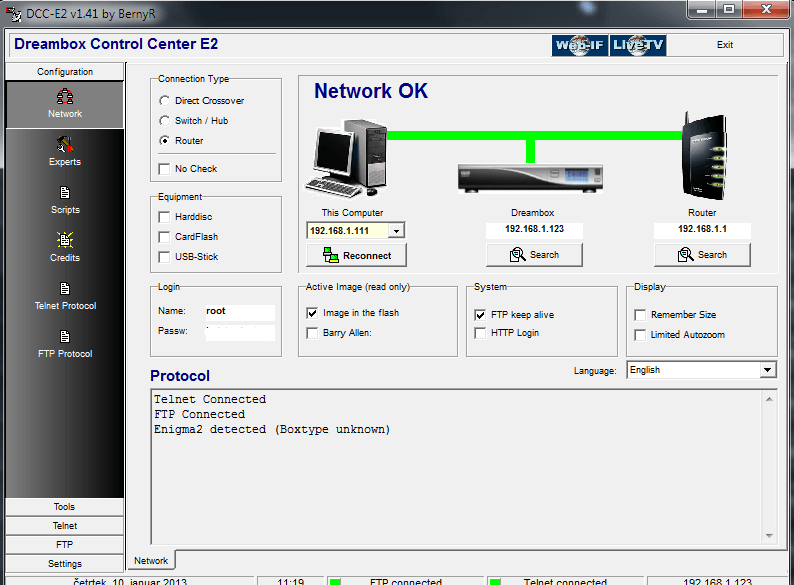
Amazing tool which nowadays looks a bit outdated but it offers nice functionalities and is very popular among sat enthusiasts. I use this software only for its telnet function (alternative is software called Putty) which is used for connecting to E2 receiver and executing various commands. I usually use telnet for restarting softcams, changing telnet password with “passwd” command and creating .ipk files with opkg-build command (you need to install opkg tools plugin via image feed). DCC also have FTP functionality but I rather use WINSCP FTP/SSH client which is better in my opinion. Latest version is 1.50 and it is from year 2012. You can download it from the authors website which is in German language!
2# Funshare CCcam Control
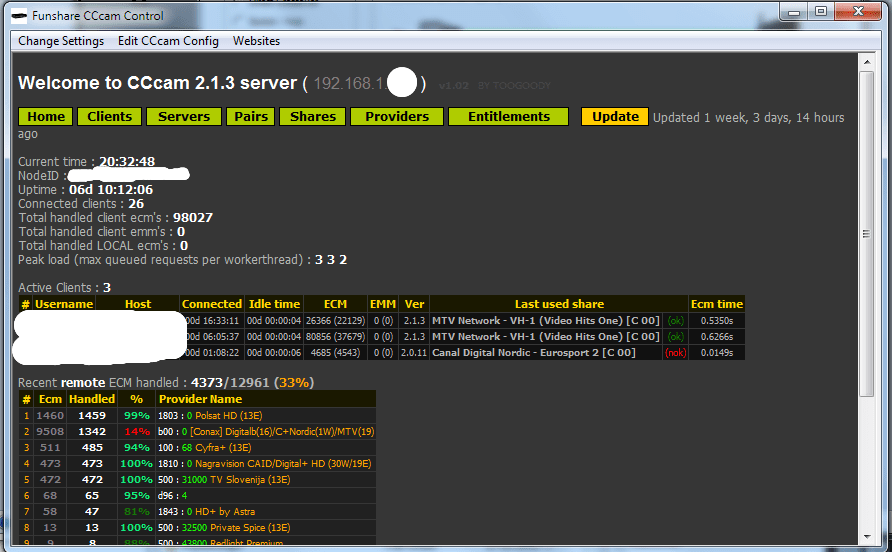
For me this is the best CCcam activity monitor. It looks nice, it works with Windows 7 x64 OS and offers all kind of information (Shares, Providers, Clients, Servers, Entitlements) about CCcam. Its actually so good that I miss it now that I use OScam. Software is not developed anymore and you can easily find the newest version if you type “Funshare CCcam Control” into Google. I think that latest version is 2.1.1 (2010). It can connect to all CCcams (even 2.3.0) and it does not matter if your CCcam server works on receiver or on Windows/Linux server.
3# VLC Media Player
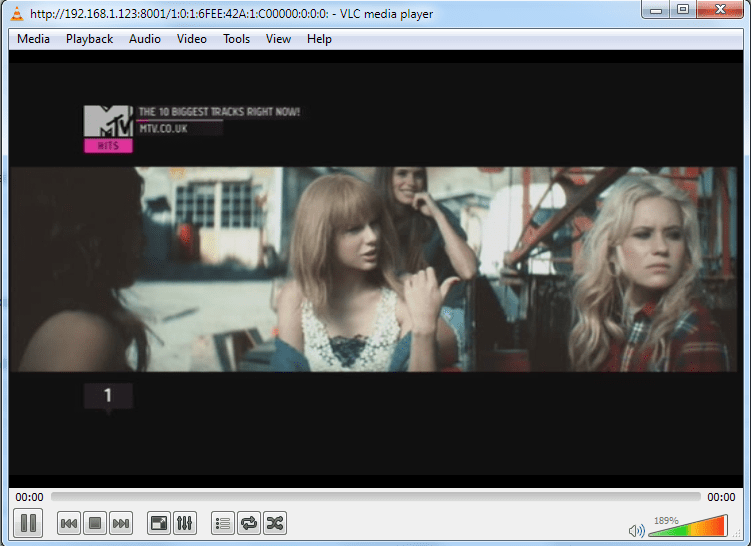
This application is a must have if you are using streaming function of E2 receivers. VLC opens when you click desired channel in OpenWebIF for example. OpenWebIF is used with open source images like OpenPLi, ViX and others. Dreambox uses different version which is closed source!
4# WINSCP FTP Client
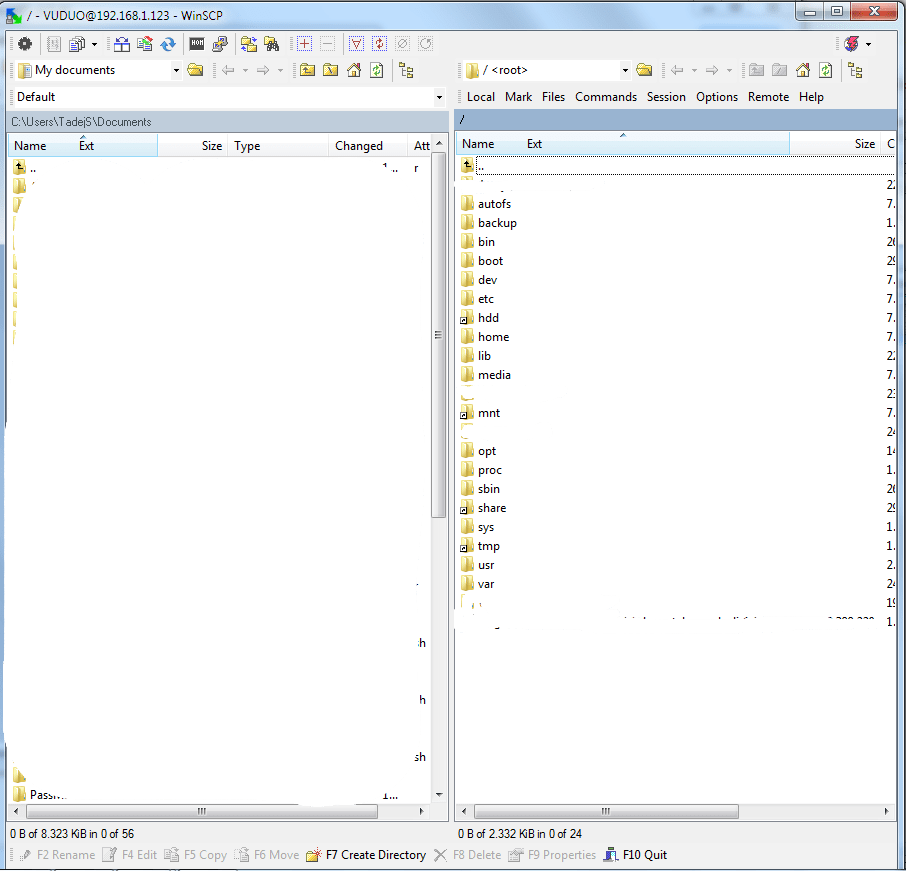
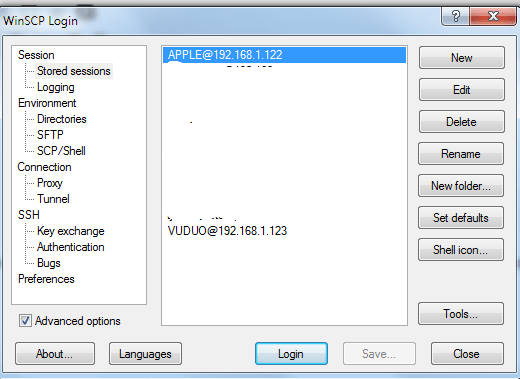
This FTP client is completely free and I strongly recommend it. It supports SFTP (SSH File Transfer Protocol), SCP (Secure Copy Protocol) and FTP protocols. You can also edit all files directly from this software as it has built-in text editor. If you do not like it, you can replace it with external text editor (I recommend Notepad++). You can do this in WINSCP settings. For more information and download just visit official website!
5# IPK Creator
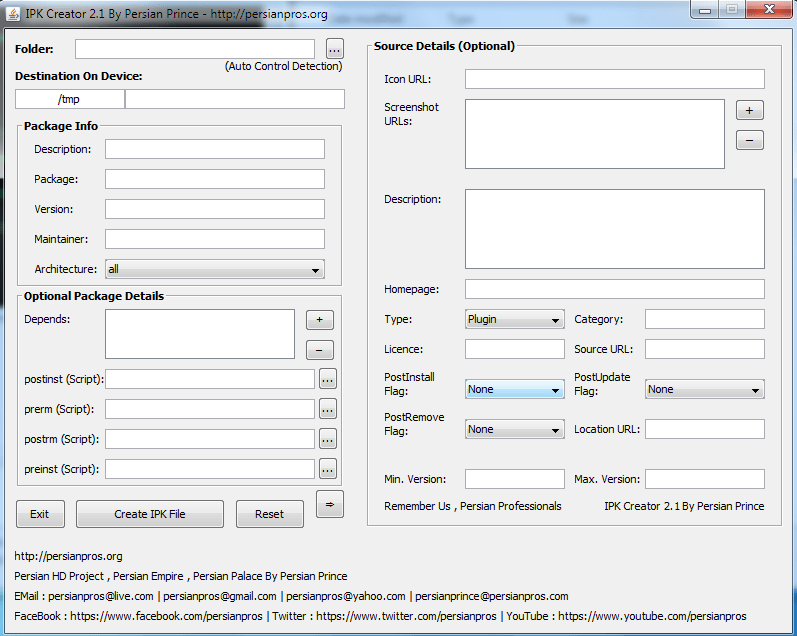
Thanks for suggestion iMaxxx. If I remember correctly you are the author of MetrixHD skin? Amazing skin btw!
I have never used this plugin before but I decided to test it following suggestion by commenter iMaxxx. It really is very handy tool for all who want to make .ipk files. First you need to prepare all files and correct folder structure. If folder structure is incorrect, .ipk file wont install properly! Folder structure for skins (example) looks like this:
PLI-HD PLI-HD/CONTROL PLI-HD/usr/share/enigma2/PLi-Full-HDControl folder contains file “control” which includes various data (example) like this:
Package: enigma2-plugin-skins-pli-hd
Version: 1.0
Description: Skin modded by X for OpenPLi 3.0
Architecture: all
Section: extra
Priority: optional
Maintainer: XXX
Homepage: XXX
OE: enigma2-plugin-skins
Depends: enigma2
Source:
When you point IPK Creator to the folder PLI-HD, it automatically picks up the data from control file. Then you can edit this file via IPK Creator. Usually, nothing else needs to be changed, but as you can see on the picture, you can also add various scripts and other stuff. I usually do not need these but you might! After you finish with setup, just press “Create IPK file” button. Application then asks you to confirm file destination. IPK file is then created and process lasts only a few seconds. I can firmly say that this app is nice alternative to opkg-build method that I use for building .ipk files. I will now definitely switched over to IPK Creator made by Persian Prince! Latest version is 2.1 and it is based on Java. I tested it on W7 x64 and it works perfectly (check if Java is installed on your system!).
Conclusion
I hope that I helped you to choose really must have applications for Windows. There are other applications too but in my opinion “normal” users do not need anything else! I also did not include so called “Toolboxes” which contains collections of different applications. My opinion is that it is the best thing to download all applications that you need and use them. Forget “Toolbox” applications. If you have any other suggestions or you think that I forgot to add something, please leave a comment! I will try to reply as soon as possible. Thanks for reading.
For discussion please visit this thread:
https://www.satnigmo.com/2214/top-windows-tools-for-enigma-2-receivers/
Enigma 2 Tools for MAC OS X
I am not using Apple computers but I decided that it would be appropriate to find all E2 tools that work on Apple equipment. First tool that I would like to present you is:
iDreamX
With this software you can edit your favorite lists (bouquets), read and search the EPG, set and edit timer events, watch television or hear radio. iDreamX works with MAC OSX and with all Enigma 2 receivers: Dreambox, VU+, Xtrend, Clarke-Tech, GigaBlue, Azbox, etc. Latest version can be obtained on this webpage! I cannot tell you my personal experiences with this piece of software but you really dont have any other options if you have only Apple computers at home. But I believe that this software is good and I also see that author is regularly updating it.
IPKG Builder
This tool comes handy when you want to create .ipk files in order to distribute your own or modded plugins and skins. This tool does all dirty work for you. It creates control file, debian-binary file, it compresses individual files and put them into ipk file. If you decide to use this tool and have any problems or suggestions, please send an email to the author: dimfil.sat@gmail.com
Sadly, this is the end of this list of OSX supported Enigma 2 tools. If you are aware of any other tools for OSX, please leave a post here: https://www.satnigmo.com/forum/index.php?threads/enigma-2-tools-for-mac-os.559/
